

How to set up recording & livestream
A reliable livestream and recording setup is essential for delivering high-quality video during church services. This guide explains how to configure the Blackmagic Design Constellation 2 M/E switcher with an iMac running ATEM Software Control and OBS. You’ll learn how to route video sources, manage audio, and integrate streaming software for a seamless broadcast experience.
Switch on all camera viewfinders
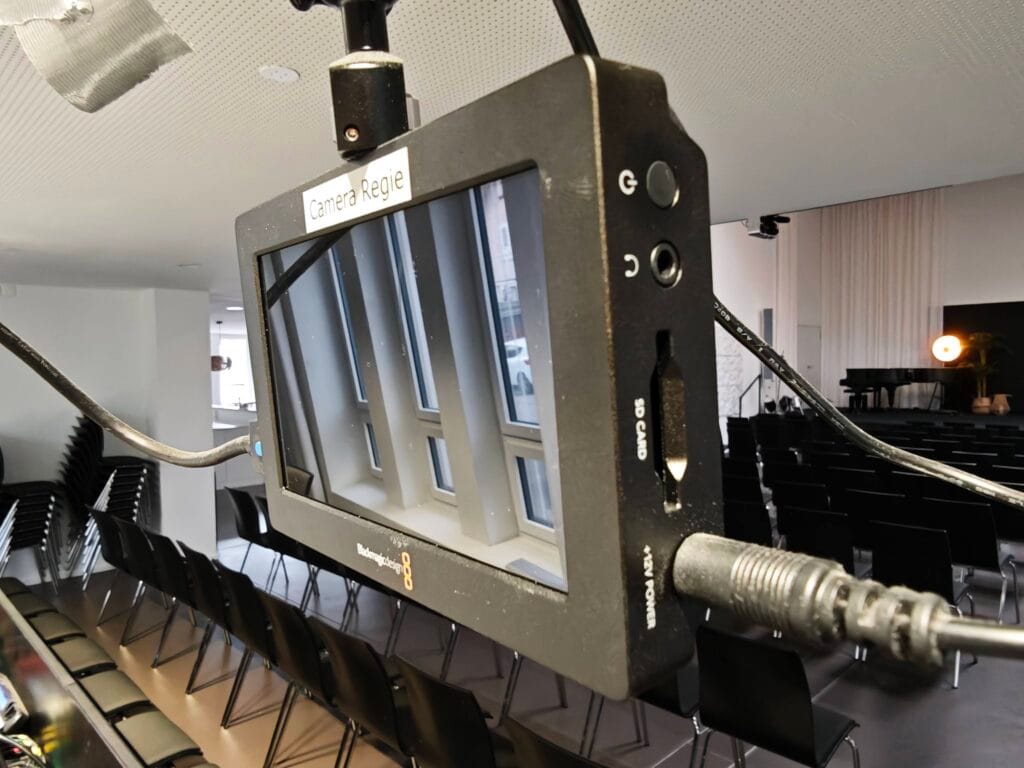
There are 3 viewfinders like the one shown here—2 on the desk and 1 mounted below the Regie camera. Power them on by pressing the power button on the top right side of the screen.
Set up ATEM Mini Pro
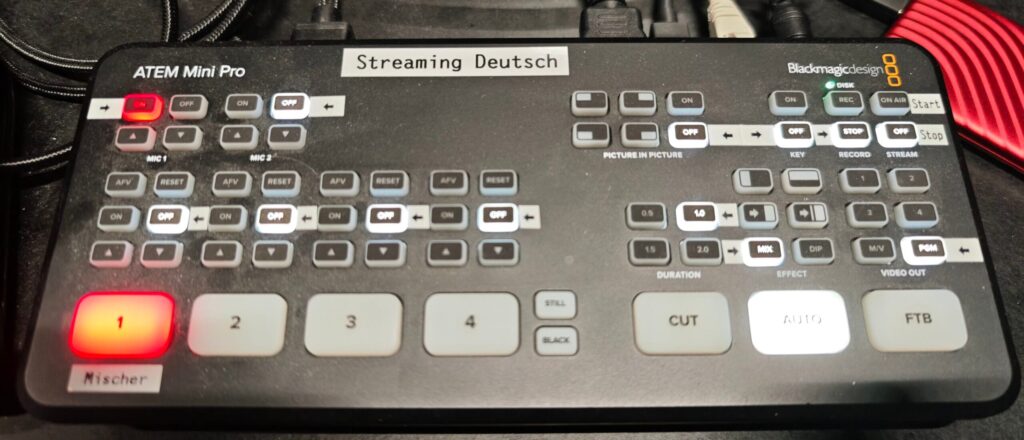
This device sits on the desk to the right of the iMac. Make sure all the buttons with a arrow label are lit. Most of the time, the VIDEO OUT in the bottom right needs to changed to PGM.
Frame left camera for a semi-wide shot of the stage
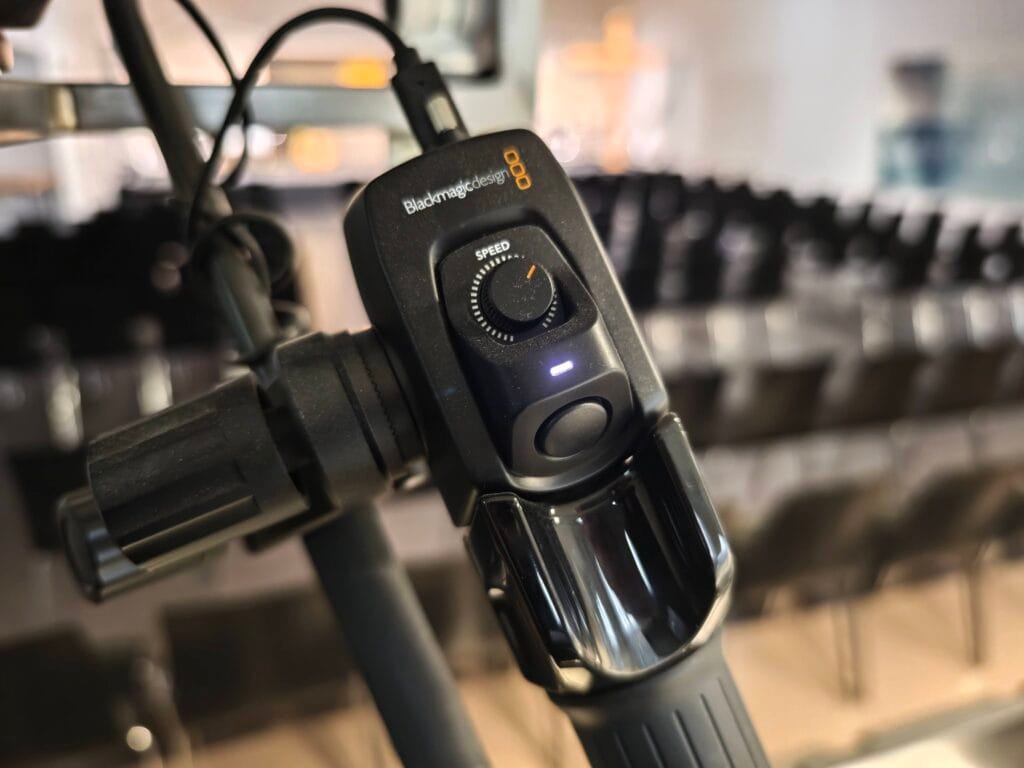
Use the zoom lever on the right grip to set the zoom to the desired angle. Be sure to refocus whenever changing the zoom (green outlines mean in focus). The button in the middle auto-focuses on the object in the center of the view.
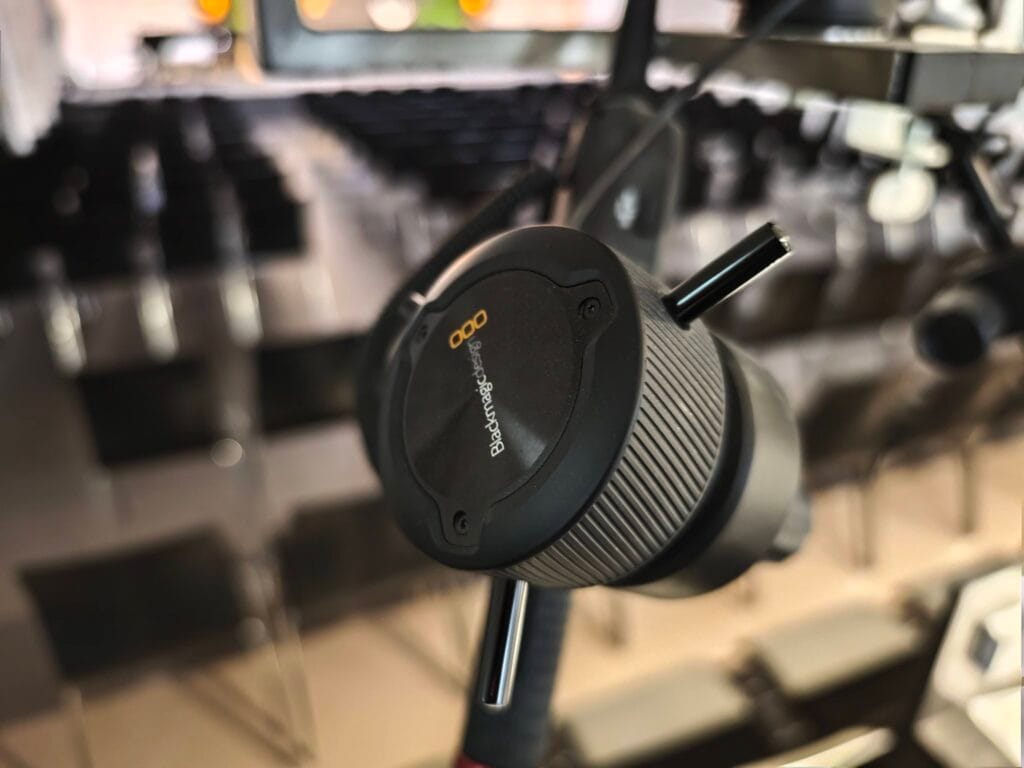
The focus dial on the left grip allows manual focusing in case the auto-focus is unsuccessful.
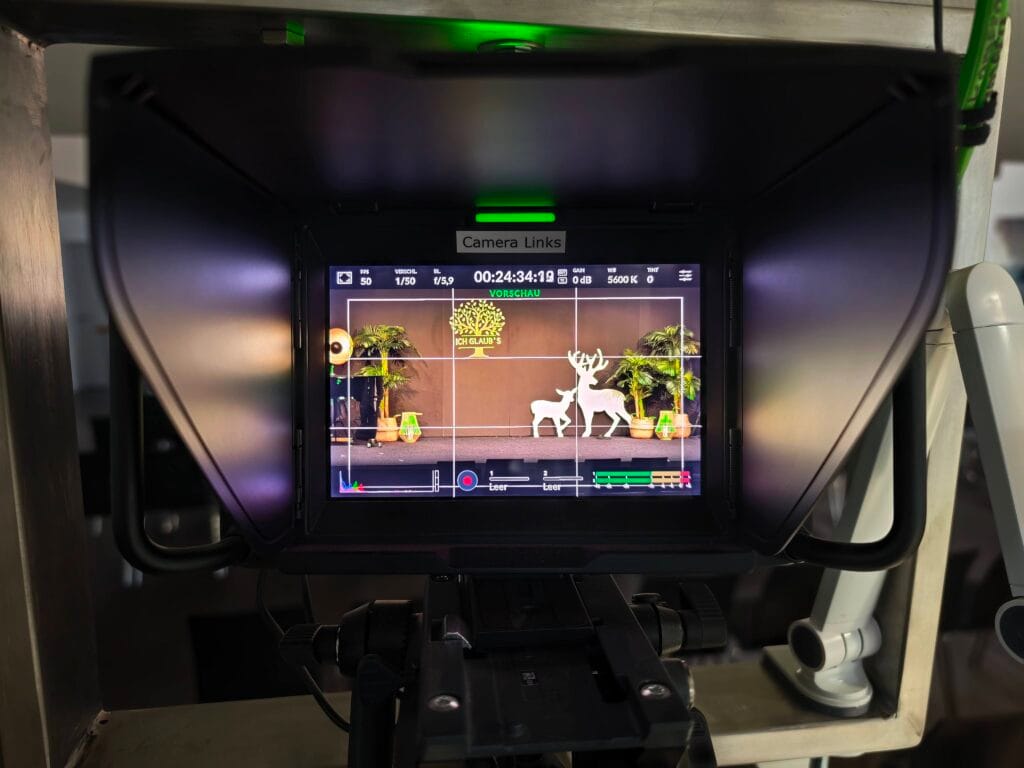
This camera should be zoomed out so it captures most of the band during songs, and speakers standing anywhere near the stage center.
Frame Regie camera for close-up of speaker
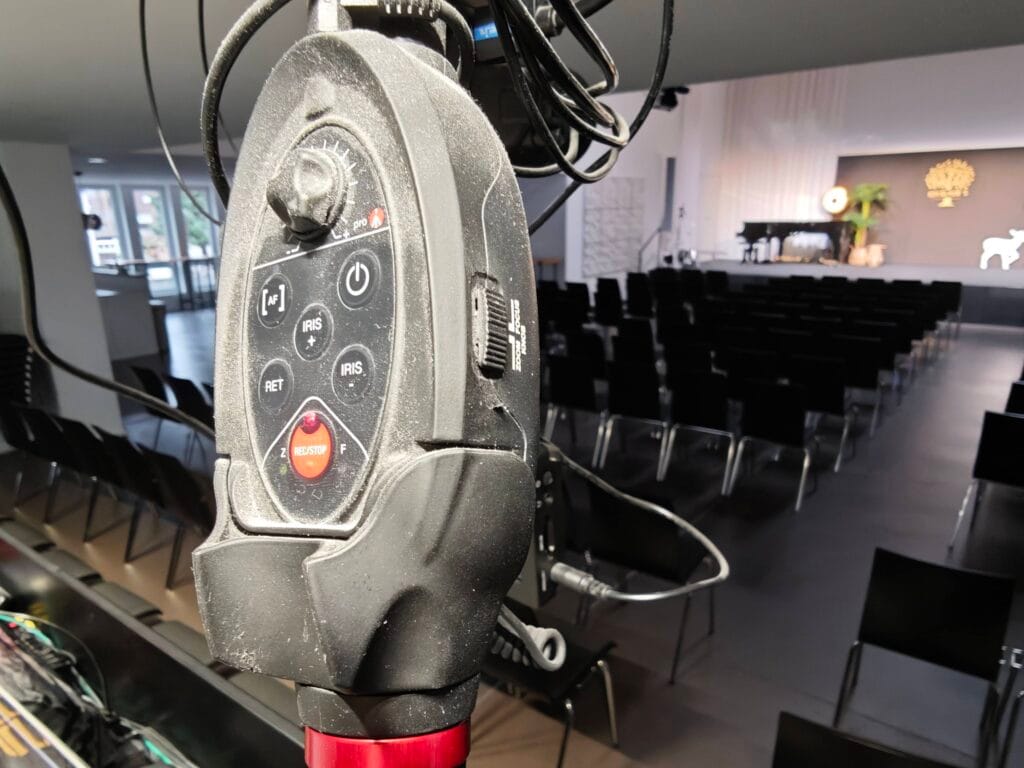
Use the right zoom/focus handle to set the desired view. Be sure to refocus after zooming. The switch on the side toggles between zoom and focus, indicated by a lit Z or F. The [AF] button also allows to auto-focus on the screen center.
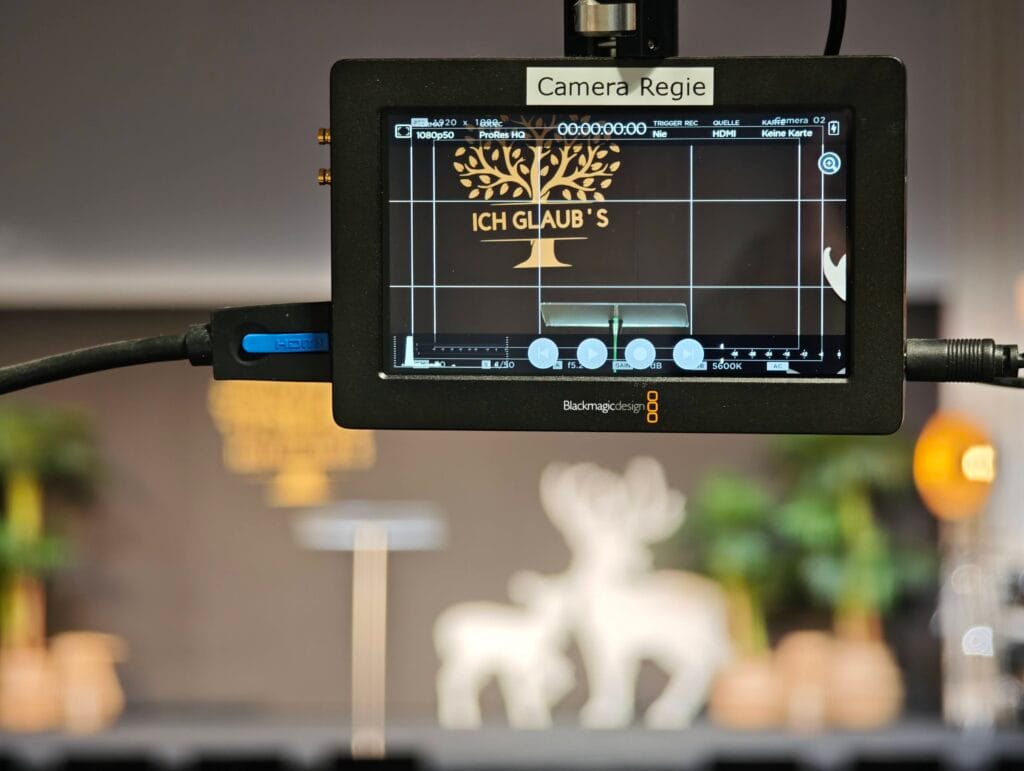
The Regie camera should be used for close-ups of speakers or band.
Log in without password
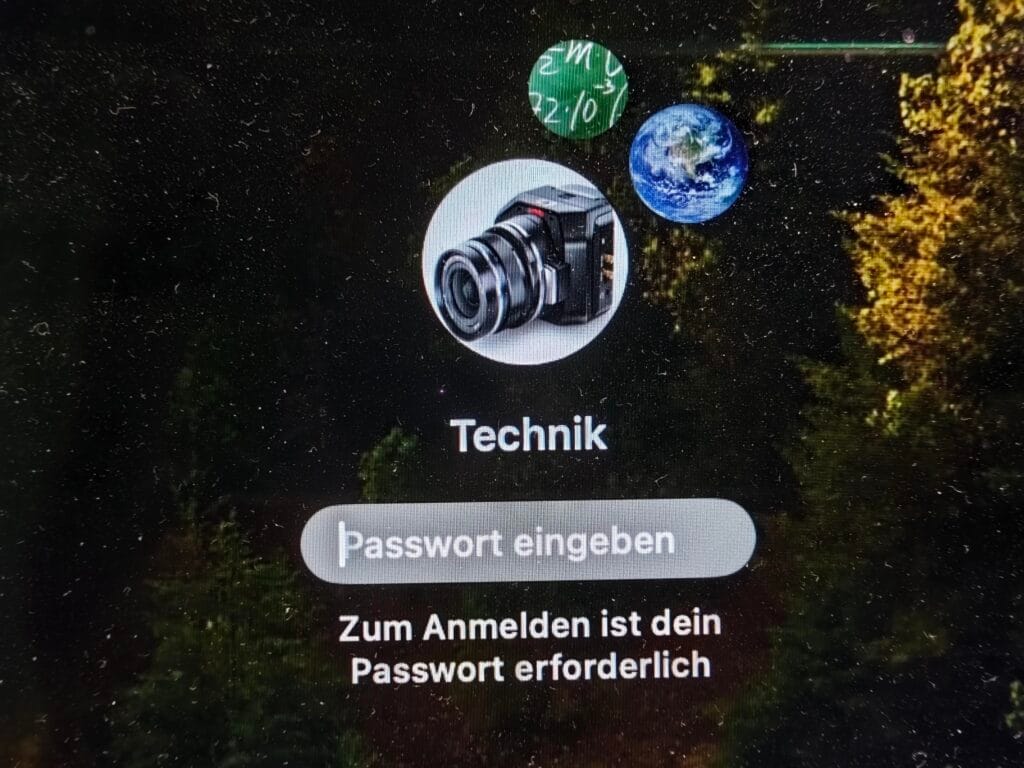
Log into the iMac as Technik but leave the password blank.
Make sure ATEM Software Control is running
This app should start automatically, but if not, this is its icon in the Dock. A dot below the icon indicates that the app is running.
Set up the Projector Output for IBF
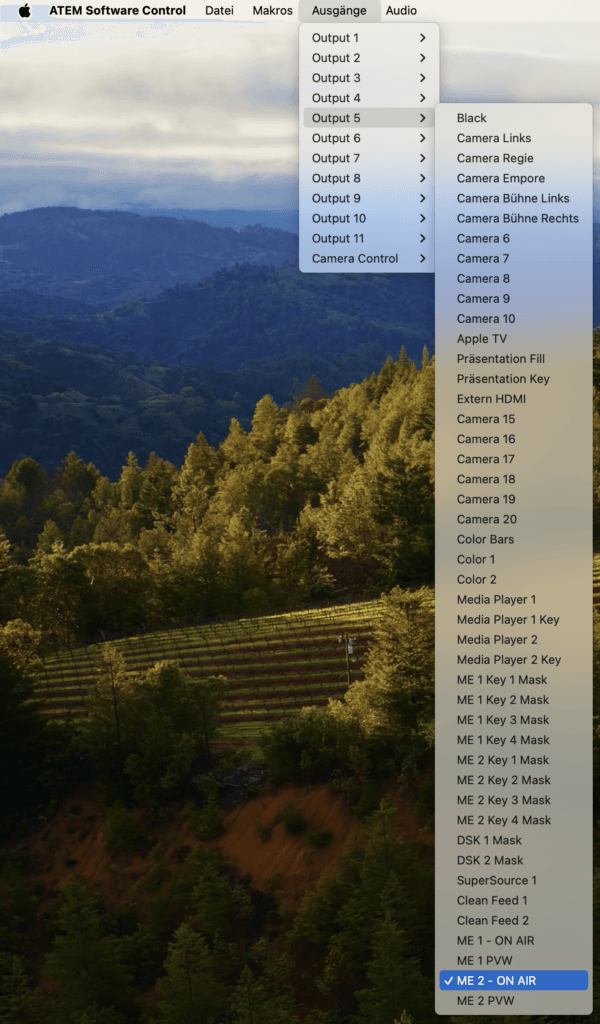
FEG likes to display the camera feed on the main projector, while IBF prefers to only display the slide content. To make this happen, with ATEM Software Control selected, click Ausgänge on the top menu bar, then click Output 5, then select ME 2 – ON AIR.
Be sure to revert this to the FEG setting after the service.
Start Open Broadcaster Software (OBS)
Start the Livestream broadcasting program, OBS. Its icon in the Dock looks like this.
Make sure that both apps are running side by side
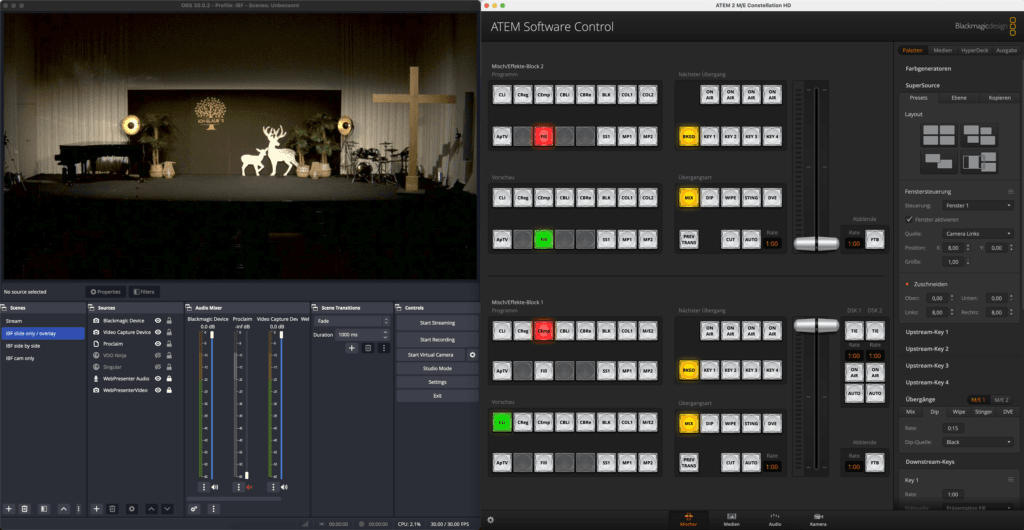
OBS and ATEM Software Control running side by side on the iMac.
In ATEM Software Control, in the topmost section labeled Misch/Effekte-Block 2, Programm, click the Fill button so it is lit red. This will send the main output from Proclaim to the main projector.
Start the Live Stream
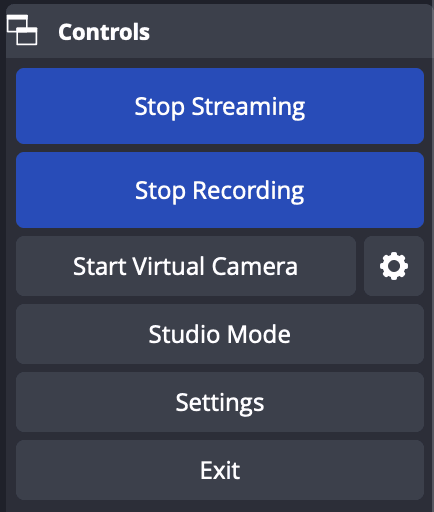
Several minutes before the service, start the Livestream by clicking the button in OBS labeled Start Streaming.
This will automatically also start a local recording, and both buttons will turn blue. At the bottom of OBS there should be some streaming stats indicating that the stream is working well.
How to use the Scenes in OBS
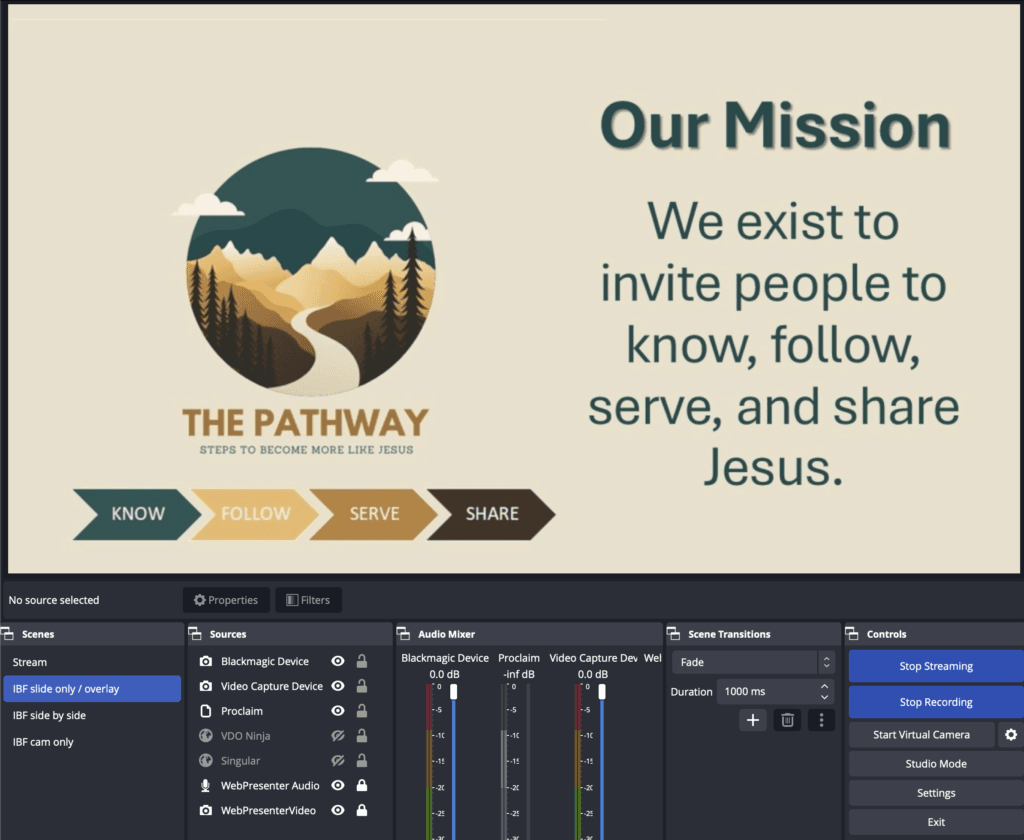
Whenever a slide should the shown full-screen, use the IBF slide only / overlay scene.
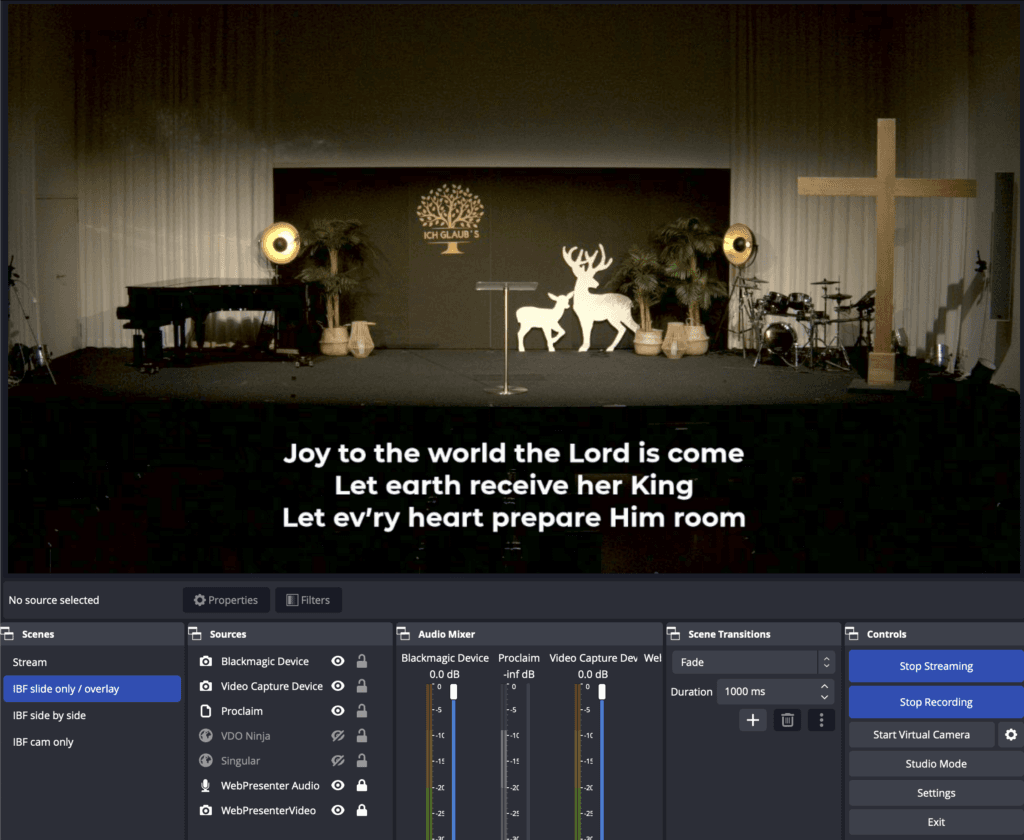
Also, whenever there is transparent content being sent from Proclaim (such as song lyric overlays), use the IBF slide only / overlay scene.
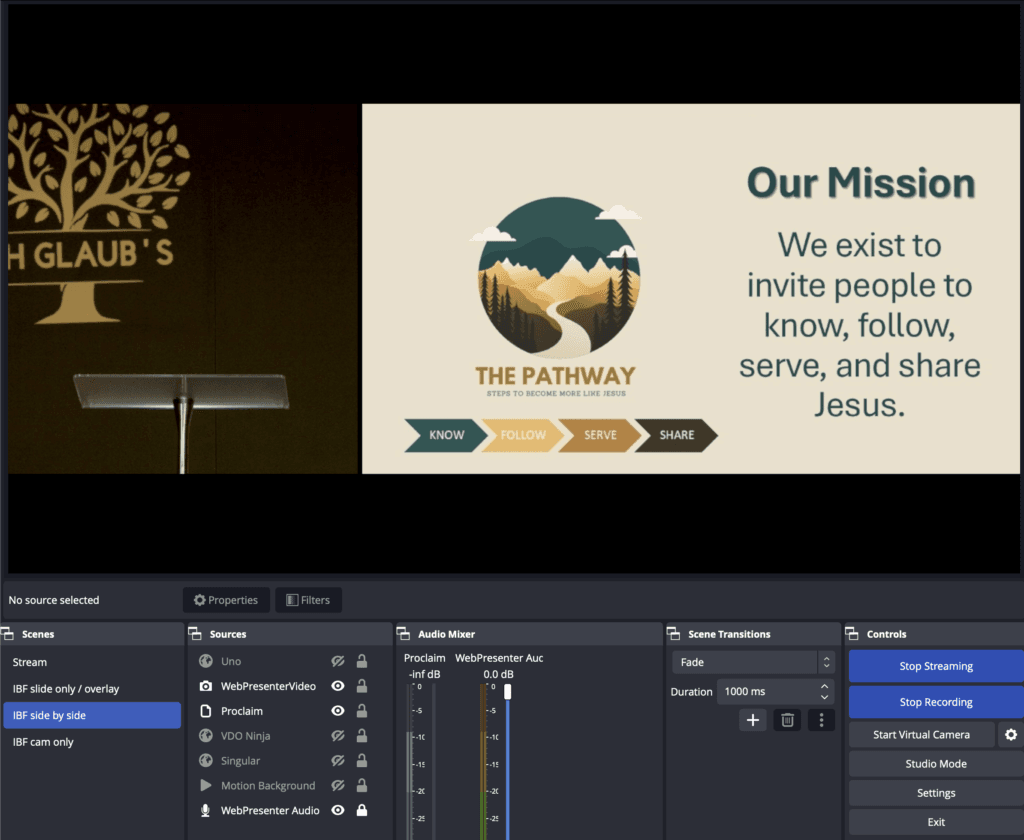
For most of the service (aside from praise & worship), IBF side by side might be the most useful scene. This places a cropped camera image on the left and the slide content on the right.
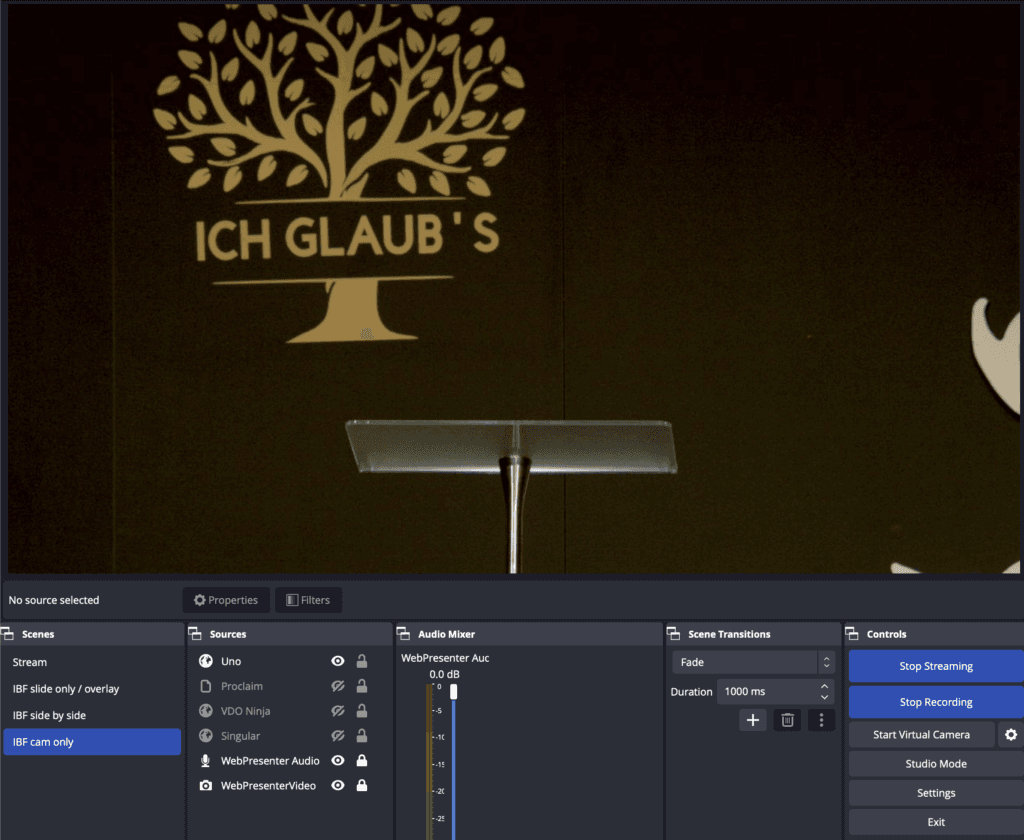
The IBF cam only scene is useful when the current slide may no longer be relevant and just the camera angle is preferred.
After the Service
After the service, be sure to stop the Livestream and recording by clicking the buttons Stop Streaming and Stop Recording.
After waiting a few seconds, close OBS by clicking the Exit button.
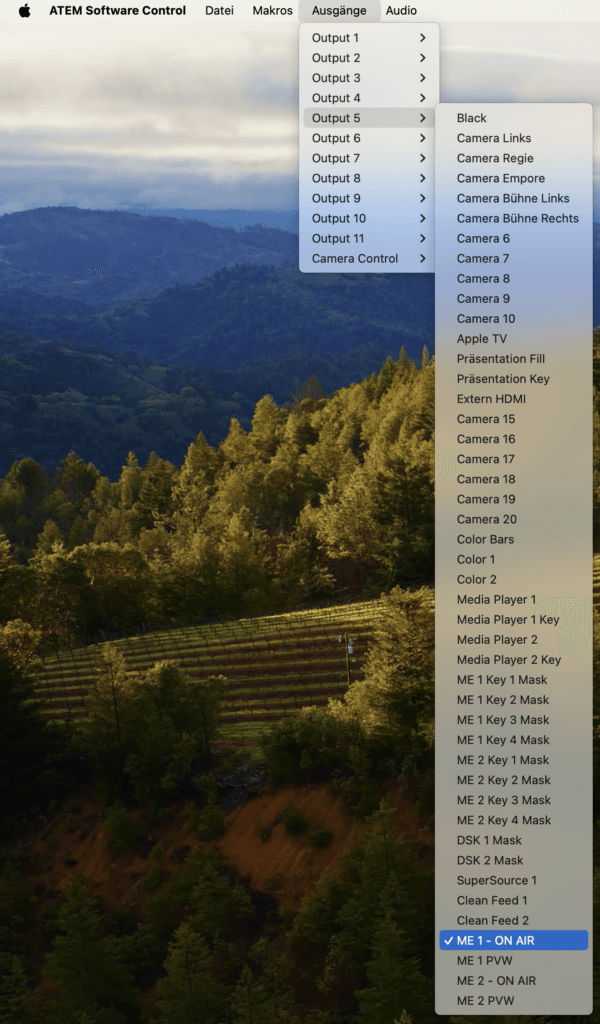
Revert the output routing to the setting needed by FEG. With ATEM Software Control selected, click Ausgänge on the top menu bar, then click Output 5, then select ME 1 – ON AIR.
Then you can close the ATEM Software Control app.
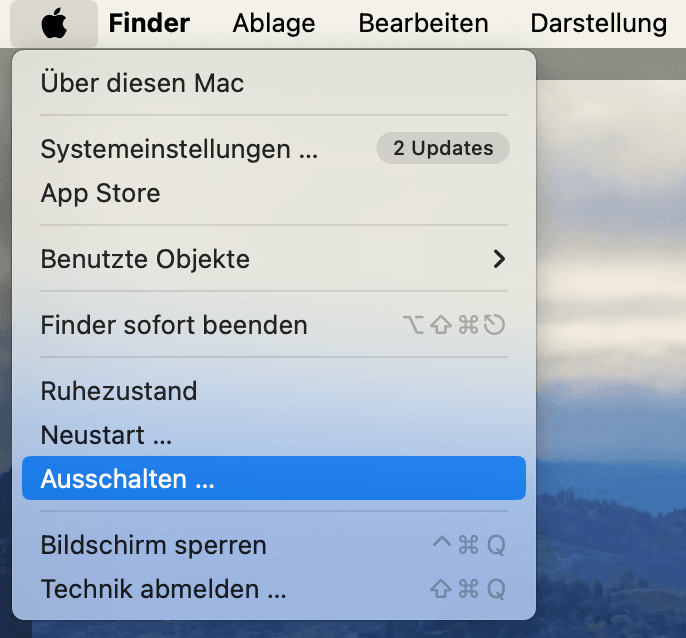
To shut down the iMac, click the Apple at the top left of the screen, then click Ausschalten … and confirm this in the pop-up window.
Result
By completing these steps, your system will be ready to record and stream church services with professional-grade video and audio. The setup ensures smooth switching between camera angles, synchronized audio, and stable streaming to your chosen platform.